Skip to content
Argil DX
Argil DX
  • search
  • ABOUT US
  • SERVICES
  • BLOG

Month: January 2018

Adding Custom Asset Metadata in AEM CMS and How to Use It

August 21, 2019January 8, 2018 by Arpit Rathi
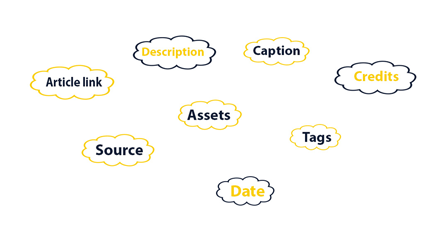
Assets, article link, description, caption, credits, tags, date, source
PROBLEM STATEMENT

Working in AEM CMS and need to add custom metadata like tags, dates, or text properties to images and videos? Read this quick how-to from our AEM experts.

Step 1:

Go to projects page ( http://<host>:<port>/projects.html )

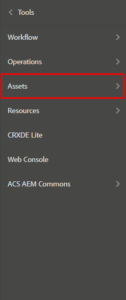
Select ‘Tools’ from the right rail and then go to ‘Assets’ and select ‘Metadata Schema’.
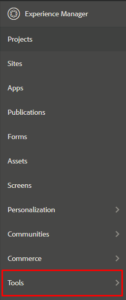
Side rail tools 1 Side rail tools 2 Side rail tools 3

Step 2:

Click on add button and provide a name to your schema.

In this case, I have created a schema named ‘DemoSchema’.
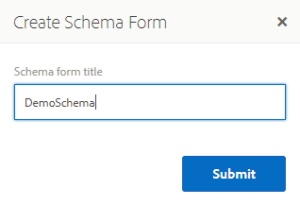
Schema form

Step 3:

Select your schema from the list by checking the checkbox and click on edit.

Here you will get an empty form in tab layout with all the widgets present in the right section, we can drag and drop widgets to our form.

Form editor

Step 4:

Provide a name for your tab from settings and drag widgets onto the form.

Step 5:

Select a widget and go to setting option on the top right.

· Provide name to a field using ‘Field Label’.

· In ‘Map to property’ field give the property path in which you want the value to be stored inside the image file. This property will be automatically created once this field will get authored.

· Give placeholder (If required), choose distinct options like required, editable, empty in read-only.

· If a field is wrongly placed either drag it to right position or delete it using the delete icon below properties.

Step 6:

After making your schema. Select your schema and click on ‘Apply to folders icon on the top rail and select the folders on which you want your schema to be applied.
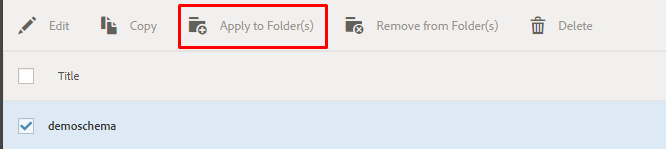
Schema list

Properties will look like this:

Assets properties.

Step 7:

To utilize these properties in sightly used in AEM CMS, make a java class using resource API.

In Java, I have injected the image path and then I’ve extracted resource out of it using resource resolver and extracted properties out of it.

@Model(adaptables = { Resource.class, SlingHttpServletRequest.class }, cache = true) 

public class ImageMetadataModel { 


@Inject 

@Optional 

private String imagePath; 


@SlingObject 

private ResourceResolver resourceResolver; 


public String getProperty () { 

Resource resource = resourceResolver.getResource(imagePath +“/jcr:content”); 

String property = “”; 

if (resource != null) { 

ValueMap valueMap = resource.getValueMap(); 

if (valueMap.containsKey(“propertyname”)) { 

property = valueMap.get(“propertyname”, String.class); 

} 

} 

return property; 

} 

}

Interested in more training and support for your organization using AEM CMS? Request a consultation to discuss Argil DX managed services.

Categories Technology Tags Adobe Experience Manager, Adobe Marketing Cloud, AEM, AEM 6.X, AEM Developer Tutorials, AEM How-To, AEM6.1, CMS, CQ, Custom image properties, Custom Metadata, Image, Image Properties, Metadata Leave a comment

Archives

  • June 2021
  • January 2021
  • August 2020
  • April 2020
  • March 2020
  • February 2020
  • January 2020
  • October 2019
  • September 2019
  • August 2019
  • July 2019
  • April 2019
  • March 2019
  • February 2019
  • January 2019
  • October 2018
  • September 2018
  • August 2018
  • March 2018
  • January 2018
  • June 2017
  • March 2017
  • December 2016
  • October 2016
  • September 2016
  • January 2016
  • December 2015
  • August 2015
  • July 2015
  • November 2014
Tweets by ArgilDX

US Headquarters

Argil DX LLC
3773 Howard Hughes Parkway
Suite 500 South
Las Vegas, NV 89169

Beaverton Office
4900 SW Griffith Dr
Suite 105
Beaverton, OR 97005

(877) 283-9889

  [email protected]

© 2026 Argil DX. All Rights Reserved.
Privacy Policy
Crafted by Pixelmattic
We use cookies on our website to give you the most relevant experience by remembering your preferences and repeat visits. By clicking “Accept All”, you consent to the use of ALL the cookies. However, you may visit "Cookie Settings" to provide a controlled consent.
Cookie SettingsAccept All
Manage consent

Privacy Overview

This website uses cookies to improve your experience while you navigate through the website. Out of these cookies, the cookies that are categorized as necessary are stored on your browser as they are as essential for the working of basic functionalities of the website. We also use third-party cookies that help us analyze and understand how you use this website. These cookies will be stored in your browser only with your consent. You also have the option to opt-out of these cookies. But opting out of some of these cookies may have an effect on your browsing experience.
Necessary
Always Enabled
Necessary cookies are absolutely essential for the website to function properly. This category only includes cookies that ensures basic functionalities and security features of the website. These cookies do not store any personal information.
SAVE & ACCEPT